If you came for image to stl guidance, this comparison explains whether Tripo H3.1 or Smart Mesh better suits a detailed print, lightweight asset, or editable 3D workflow.
H3.1 and Smart Mesh solve different mesh problems: one favors dense detail, while the other gives you a lower-poly quad model. I choose between them by deciding what the file must do after generation, not by judging the preview alone.

The short version
- Choose H3.1 when visible surface detail matters most, especially for close renders or detailed prints. It can produce meshes up to 2 million polygons.
- Choose Smart Mesh when you need a lighter asset with quad topology for a game, VR scene or further mesh editing. Its range is 500–25,000 polygons.
- Check the destination before exporting. Tripo offers GLB, FBX, OBJ and USD for 3D workflows, plus STL and 3MF for printing.
- Treat a print export as a starting point. Inspect scale, thin parts and mesh integrity in your slicer before committing material.
What changes between H3.1 and Smart Mesh
The choice on Tripo AI’s model guide is not simply “high quality” versus “low quality.” H3.1 is Tripo’s high-detail option; Smart Mesh produces native quads within a much smaller polygon range. Both have useful destinations, but they spend their geometry budget differently.
A polygon count tells you how much mesh is available to describe a surface. More polygons can represent small folds, bevels and irregular shapes without making them look visibly faceted. That helps when a camera gets close to a prop or a printer needs geometry rather than a painted illusion of detail. It does not guarantee that every tiny feature will survive printing: a thin strand can still be too fragile, regardless of how many polygons describe it.
Quad topology matters for a different reason. Connected rows of quads are easier to work with when you want to reshape a model or manage how its surface deforms. A real-time asset also has a performance budget, so spending polygons on details that barely appear on screen can be wasteful. Smart Mesh’s lower range gives you a more appropriate place to start for that job.

The Tripo guide sets out the H3.1 and Smart Mesh options alongside their output ranges.
Neither choice replaces an inspection pass. I rotate the result, look behind protruding parts, and check whether the silhouette reads without relying on texture. A convincing front view can hide joined limbs, missing recesses or shapes that only appear to be separate because of shading.
Choose by destination, not by the preview
Here is the decision order I use before generating or exporting an asset.
- Name the final use. A tabletop figure, a close product render and a game prop place different demands on the same source image. If the object will be printed or viewed close up, start by considering H3.1. If it must remain light enough for a real-time scene, consider Smart Mesh.
- Decide what must be real geometry. A texture can suggest scratches or seams on screen. It cannot create a raised ridge on a single-color print. If a detail must have physical depth, inspect it in the mesh rather than trusting the textured view.
- Decide what you need to edit. If you expect to reshape broad surfaces or adjust edge flow, Smart Mesh’s quads are a practical advantage. If the main job is preserving fine surface form, H3.1’s denser output is the stronger candidate.
- Check the receiving tool. A slicer, renderer and game engine do not need the same export. Pick the format for the next application, then verify that the model arrives at the intended size and with the appearance data you need.
Use comparable source material when testing the options. Tripo accepts text, a single image, multiple views or a sketch. For an image-based test, a clear subject against a plain background and a view that shows depth give you a better basis for judging shape than a busy scene. Compare the meshes themselves before deciding that a texture makes one result better.
For printing, favor shape and inspect weak points
H3.1 is the more natural starting point when a physical piece depends on sculpted creases, hard-surface edges or other close detail. Tripo can export STL and 3MF and can segment a model into parts. Still, an exportable mesh is not automatically a durable print. I check for unsupported projections, thin weapons, closed gaps and surfaces that might need repair before slicing.
Small figures make that distinction clear. The resin miniatures guide is useful when you need to take a character model beyond export: it covers scaling to 28 or 32 mm, orientation, supports, washing and curing. At that size, a beautifully defined strand of hair in a mesh may be better represented as a thicker sculpted shape. Detail has to survive both the printer and handling.
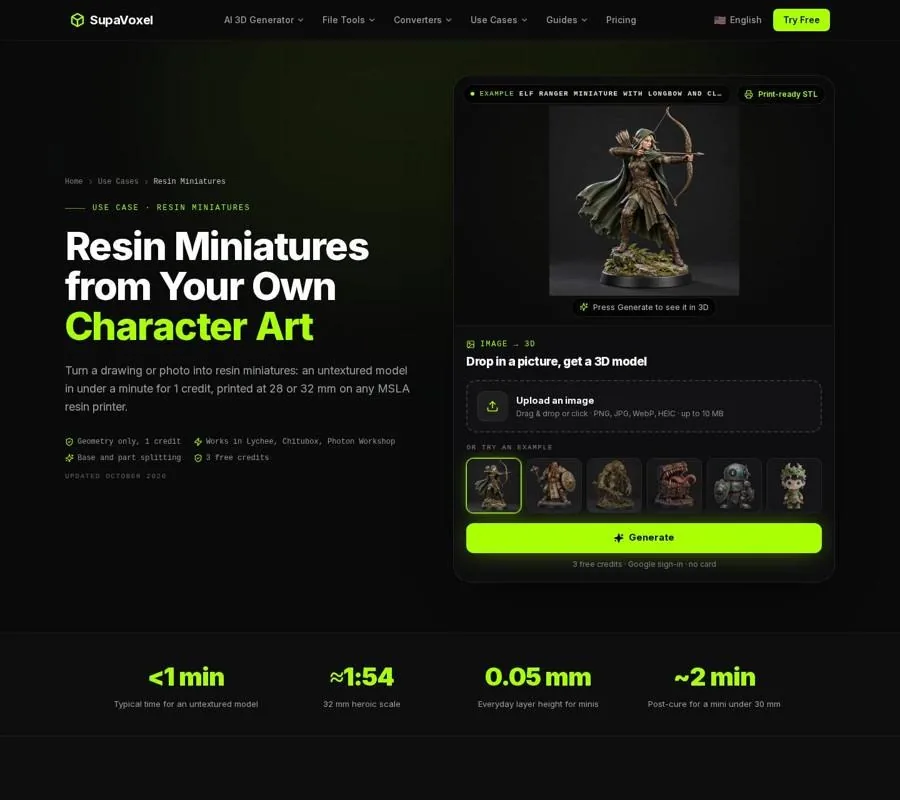
The resin miniatures guide shows the print workflow that follows model generation.
For a resin miniature, I would inspect the bare geometry before worrying about its color. The figure will be supported, printed, primed and painted; texture in a screen preview does not solve a weak ankle or a blade that merges into the body. For a larger print, I would also ask whether separating protruding parts would make orientation and cleanup easier. Do that planning before treating an STL as finished.
Smart Mesh is not forbidden for printing. A slicer ultimately works with a surface made of triangles, so its quads do not provide a special print benefit. Choose it for a print if its shape contains the detail you actually need; choose H3.1 when the extra geometry carries visible physical features.
For renders, separate surface detail from texture detail
A render can use both geometry and appearance. Tripo supplies PBR textures, with 8K textures on higher plans, but a detailed texture does not change the outline of an object. If a notch, folded edge or deep groove must cast the right silhouette or shadow in a close shot, H3.1 is worth considering. If the camera keeps the object small, the lighter Smart Mesh result may already show everything that matters.
I make this call by looking at the asset without its material first. Does the shape still explain the object? Then I look at the textured result and ask which remaining details are purely surface appearance. This keeps me from spending a dense mesh budget on marks that a texture handles well—or expecting a texture to fix an incorrect profile.
Also think about the next edit. A dense result may preserve detail for a finished still but be less convenient when substantial reshaping remains. Smart Mesh gives you quad topology if the form is still going to change. Neither output should be selected solely because its preview looks sharper at one camera angle.
For games and VR, start with the asset budget
Smart Mesh is aimed at the kind of lower-poly quad asset used in real-time work. Its 500–25,000 polygon range lets you choose a level of geometric detail suited to the prop’s role. A background object does not need the same treatment as an item the player can inspect closely. The important test is how it reads at its actual on-screen size, not how impressive it looks when zoomed in.
I check the silhouette first, then large shapes, then texture. If reducing geometry erases the identity of a handle, horn or mechanical joint, that is a meaningful loss. If it only removes surface irregularities that the material still communicates, a lighter mesh may be the better asset.
H3.1’s high polygon ceiling is useful when dense detail is the deliverable, but it is not an automatic game-ready choice. Tripo’s own tools include retopology, and Smart Mesh exists specifically for a different topology and polygon target. Decide how much editing the asset needs before passing it to the rest of a real-time pipeline.
Export the information your next tool needs
Mesh choice and file format are separate decisions. Tripo lists GLB, FBX, OBJ, USD, STL and 3MF exports on its own platform. Before downloading, I ask what must survive the handoff:
- Shape for a single-color print — STL is the straightforward choice. Check size after import and inspect the sliced result.
- Shape plus material references for editing or rendering — OBJ can carry UV coordinates and refer to a separate material file and texture images. Keep those files together.
- A textured asset in one file — GLB is useful when you do not want to manage OBJ’s separate appearance files.
- A print workflow that needs more than a bare mesh — check whether 3MF fits the receiving slicer and the information you intend to pass along.
- A specific application requirement — choose FBX or USD when the destination calls for it, rather than exporting every format and guessing later.
The STL vs OBJ format guide explains the handoff that catches many makers out: STL stores shape, while OBJ can preserve UVs and material references. Neither STL nor OBJ records units. If an import looks unexpectedly tiny or huge, verify its dimensions instead of assuming the geometry itself changed.
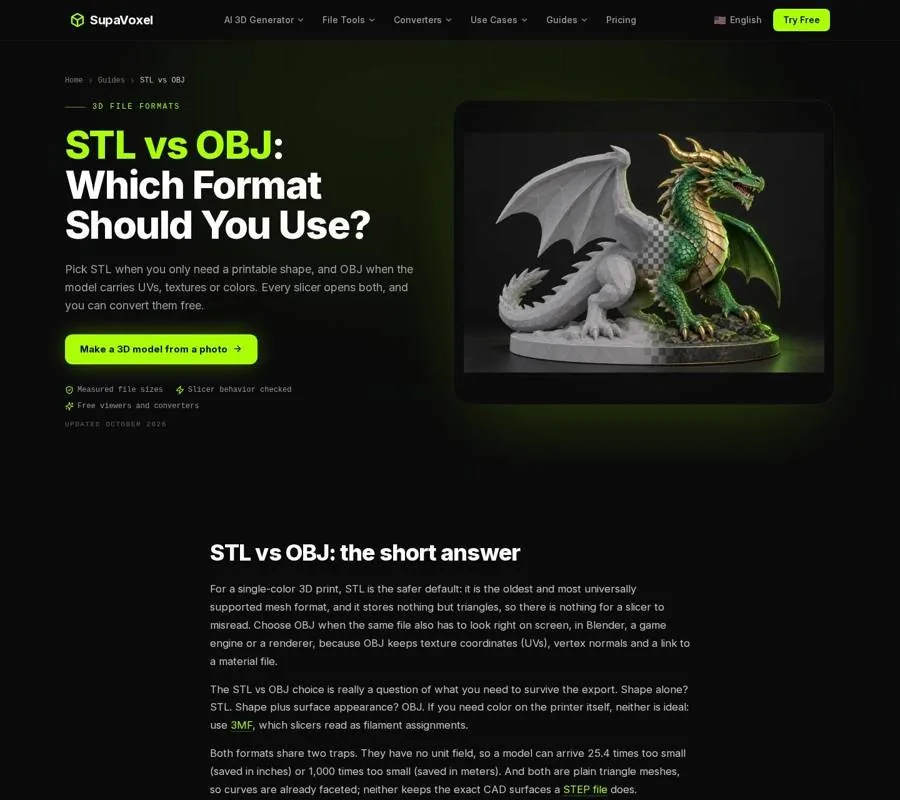
The format guide compares what STL and OBJ retain when a model moves to another tool.
If your priority is finishing a printable file rather than obtaining Tripo’s quad output, the Tripo alternative comparison lays out a separate image-to-model workflow with repair, plane cuts with pins, stand bases, molds and multi-color 3MF. Those in-studio print-prep features are included in every paid plan from $25 a year. That is a workflow comparison, not a way to turn an existing Tripo mesh into Smart Mesh.
FAQ
Is H3.1 always better than Smart Mesh?
No. H3.1 favors dense detail, while Smart Mesh offers 500–25,000 polygons and native quad topology. Pick the one that suits the final asset and the edits still ahead of it.
Should I export a Tripo print as STL or OBJ?
Use STL when you need a single-color printable shape. Use OBJ if the same model must retain UVs and material references for screen-based work, and keep its accompanying material and texture files together. Check dimensions after either import because neither format stores units.
Does a detailed H3.1 mesh mean a miniature is ready to print?
No. Inspect thin features and gaps, then check scale, orientation and supports in your slicer. Polygon density describes the surface; it does not make a fragile feature strong.