For readers exploring image to stl workflows, this guide shows how Snapshapy can move from a text idea to concept images and then a textured 3D model, making it a useful starting point when no reference image or drawing is available.
I typed one sentence about a mushroom cottage, got four concept images back in under a minute, picked the one I liked and had a textured 3D model about five minutes later. The whole run cost 11 credits: 8 for the four concepts and 3 for the 3D build.
If you have a picture in your head but no drawing to start from, the slowest part of making a 3D model is usually the first one: deciding what the thing should look like. Snapshapy handles that step inside a chat. You ask for a few concept options, choose one, and ask for it in 3D. This is the exact run I did, with the messages I typed, what came back and what the file looked like when I opened it.
What you need
- A Snapshapy account with some credits. Concepts cost 2 credits per image and an image-to-3D build costs 3 credits, so four options plus one model is 11 credits.
- A one-line idea. Mine was a cozy mushroom cottage with a round door.
- Nothing else. No reference photo, no 3D software for the generation step. You only need a 3D app or engine later if you want to use the file.
I left the spend limit under the message box on its default, "Up to 10" credits per message. Both of my messages stayed under that, so nothing stopped to ask me for approval.
Step 1 — Ask for four concept options
I opened a new chat at snapshapy.com/app and typed: "Give me 4 concept options for a cozy mushroom cottage with a round door".
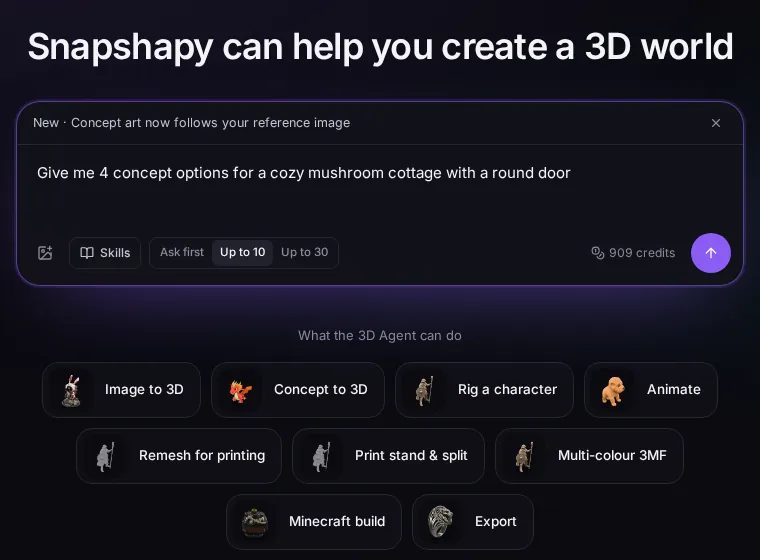 The first message in a fresh chat; the spend limit chips sit under the text box.
The reply came back in about 9 seconds and described the four directions it was drawing: a red-spotted toadstool with a stone chimney, a tall slender one with a twig balcony, a two-stalk cluster with a blue door, and a squat orange-capped one with a plank door and a woodpile. Under it, a concept card with four tiles started filling in, each with its own progress bar.
 Four tiles drawing at once, labelled "8 credits" on the tool row.
All four were finished roughly 50 seconds after I pressed send. Each image took between 35 and 41 seconds to draw.
Step 2 — Compare the options
The finished card says "Pick one to make it 3D, or ask for changes by number." Each tile is a single object on a plain grey background, which is what you want if a 3D model is the goal: no scenery to confuse the shape.
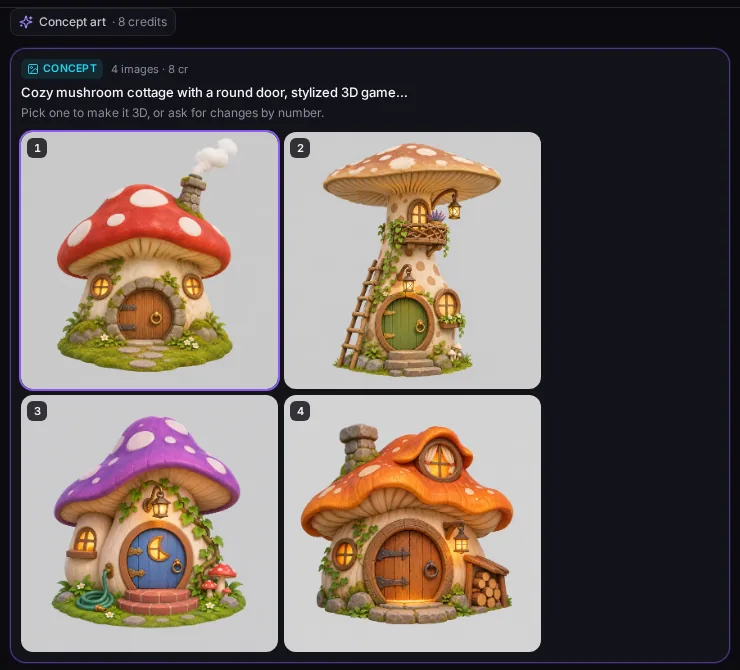 The four mushroom cottages: red toadstool, tall stalk with a ladder, purple cap with a blue door, orange cap with a woodpile.
Clicking a tile opens a larger preview. It has a download button for the image itself and a "Make it a 3D model" button marked 3 credits, plus a strip with the other options from the same chat, so you can flick between them before deciding.
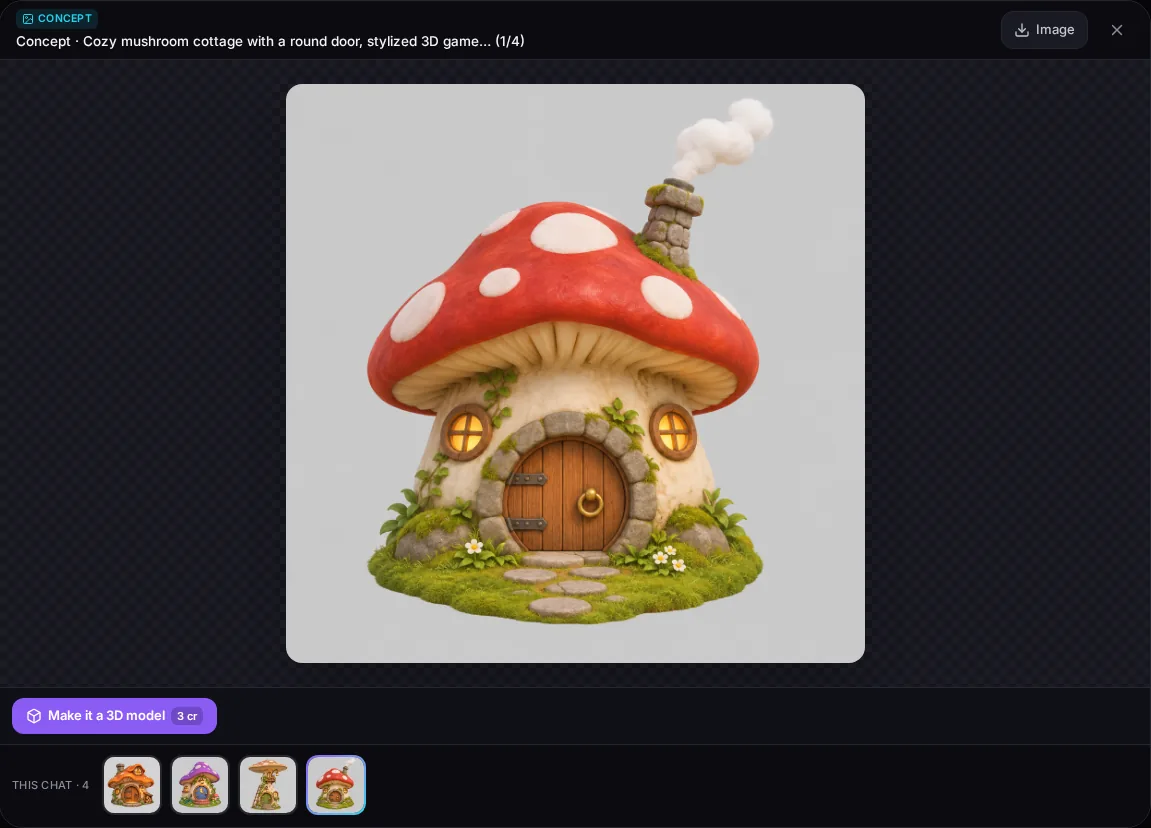 The preview of option 1, with the one-click "Make it a 3D model · 3 cr" button at the bottom left.
I liked the first one best: the round wooden door sits in a stone arch, there is a chimney, and the silhouette is simple enough to read as a game prop.
Step 3 — Pick one and ask for the 3D build
You can use the button in the preview, but I closed it and asked in the chat instead, because I wanted to see how the agent handles a plain-language pick. I wrote: "I like number 1, the red one with the chimney. Build it as a textured 3D model."
The answer came 15 seconds later: it was building the red toadstool cottage as a textured model for 3 credits, about 5–8 minutes. It also warned me about something I had not thought of: the chimney smoke is drawn in the picture, so it would come out as part of the mesh, and it offered to leave it out if I wanted.
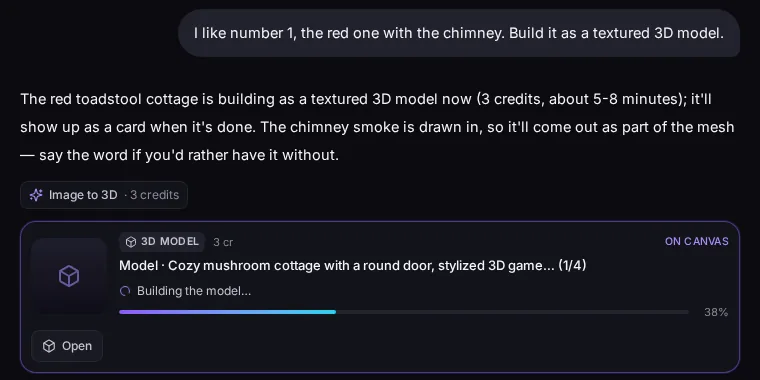 The 3D card while it builds, with a percentage bar.
I kept the smoke. The card went from "Building the model…" to "Ready" in 4 minutes 46 seconds, and then showed three buttons: Open, Use in chat and Export.
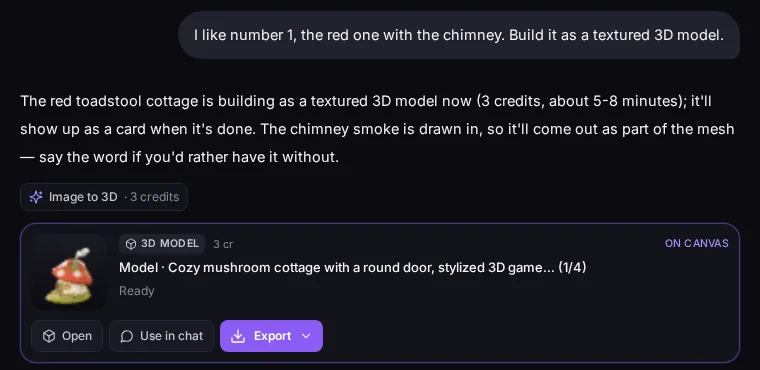 The finished 3D model card. The chat header now reads "11 spent".
Step 4 — Export the file
The Export menu offers the same five formats on every model card: GLB (the original file, for the web and game engines), STL (geometry only, for slicers), OBJ (a zip with the .obj, .mtl and textures), 3MF, and USDZ for AR Quick Look on an iPhone or iPad.
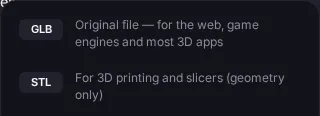 The top of the Export menu, one line per format with what it is for.
I took the GLB. It is a big file, so the button counted up "Downloading 31%… 95%" and then "Exporting GLB…" before the download landed, about 84 seconds in my case.
What you get
I opened the GLB and measured it:
- File: 89.6 MB GLB
- Geometry: 1,496,696 triangles, 877,197 vertices, one mesh, one material
- Textures: three 4096 × 4096 maps (colour, normal, and metal/roughness)
- UVs: yes; no rig and no animation (it is a static model)
- Proportions: roughly as wide as it is deep and tall, smoke plume included
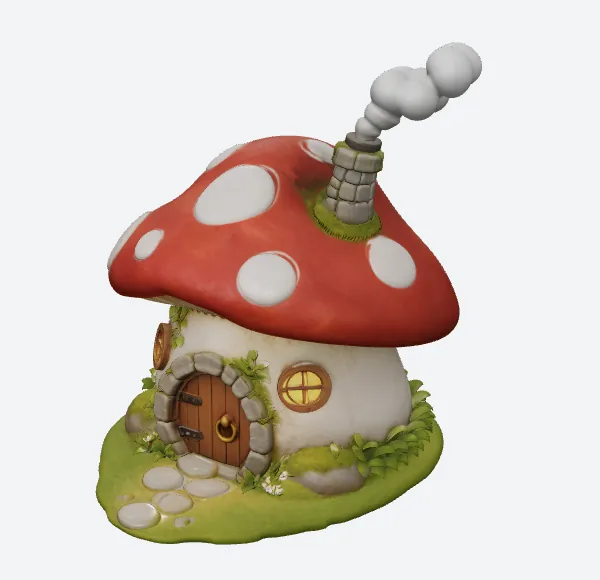 My own render of the downloaded GLB: the door, stone arch, windows and stepping stones all came through.
The front matches the concept closely: the stone arch around the door, the round windows, the moss and the stepping stones. The back was never in the picture, so it is filled in plainly: the red cap with white spots, a white stem and a ring of leaves, no back door or windows.
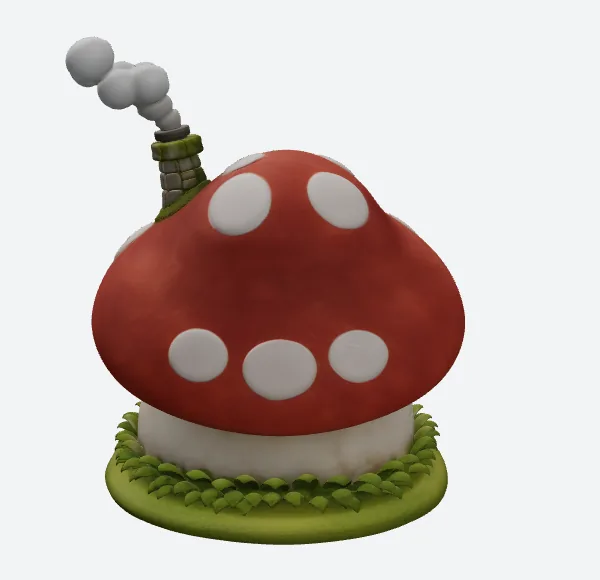 The back of the same model: simpler, because the concept only showed the front.
Tips and limits I ran into
- Be specific about the one feature you care about. I asked for a round door, and every one of the four options had one. The rest of the design varied freely.
- One object per concept. Each option is a single object on a plain background. If you describe a whole scene, expect it to be drawn as one fused object.
- Read the build reply. The note about the smoke becoming part of the mesh was useful. If you plan to print or animate the model, that is the moment to ask for it without.
- The back is a guess. The build works from one picture, so anything not visible in the concept gets a plain version. If the back matters, ask for a concept that shows more of it.
- The raw model is heavy. 1.5 million triangles and 4K textures are fine for a render, but far too heavy for a web or mobile game. You can ask the agent to reduce it in the same chat, which is free.
- If no 3D card appears. In this run the build started right away. If you approve a build and no 3D card shows up within a minute, tell the agent "Please start the 3D build now."
FAQ
How many concepts can I ask for at once? I asked for four and got four in one card. Each one is 2 credits, so the cost scales with the number you ask for.
Do I have to type my choice, or can I click? Both work. The preview of each concept has a "Make it a 3D model" button for 3 credits; I typed "number 1" in the chat instead and it built the same option.
Can I change a concept before building it? The card itself says you can ask for changes by number, for example by asking to redo option 2 with a blue door. I did not need to in this run.
Is the 3D model ready for a game engine? The GLB opens with textures and UVs, but at 1.5 million triangles it is a source model, not a game asset. Reduce it first.
Wrap-up
From a one-line idea to a textured GLB took me about eight minutes of wall-clock time, including the two minutes I spent looking at the options, and 11 credits. The useful part is that you get to choose the design before you pay for the 3D build, and that the choice can be as casual as "number 1, the red one". If you want to skip the chat entirely, the ready-made forms on the templates page run the same concept-then-3D pattern for things like keychains and ornaments.