If you came looking for image to stl help, this guide explains why a PLY point cloud may not convert to OBJ and what to check before exporting. It covers faces, surface reconstruction, units, and color compatibility.
If your PLY opens as colored dots but the OBJ conversion button is disabled, the file probably has no faces. The fix is to reconstruct a surface first—not to change the file extension or try another export setting.
The short version
- SupaVoxel’s PLY to OBJ converter needs a PLY mesh with faces. It cannot turn vertices alone into a mesh.
- If the file reports 0 triangles, you have a point cloud. Reconstruct a surface in a scan-processing application, then export a new PLY.
- Once the file has faces, check its units before converting. PLY does not record whether its coordinates mean millimeters or meters.
- If color matters, test the OBJ in your destination application. OBJ vertex colors use an extension that some importers ignore.
Check what the PLY actually contains
A point cloud and a mesh can look surprisingly similar from a distance. A dense cloud draws so many dots that it appears to have a continuous skin. Zoom in, though, and there is no surface joining those positions. A mesh has vertices and faces: connections between vertices that define its triangles or polygons.
I would inspect the source file before changing any export settings. The PLY viewer opens both kinds of PLY, displays colored points or a shaded surface as appropriate, and shows vertex and triangle counts. Its wireframe view is useful when a scan has faces but the surface looks uneven.
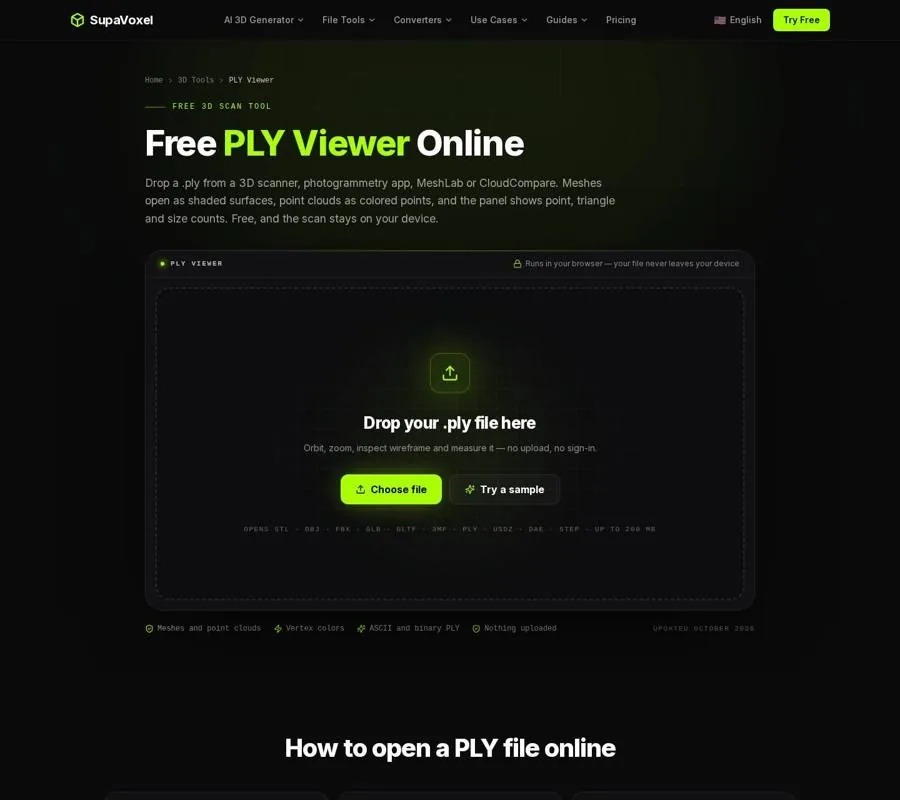
The PLY viewer shows whether the scan is displayed as points or a surface and reports its geometry counts.
Look at the triangle count rather than trusting the appearance of the preview. 0 triangles means there is no mesh to export. A nonzero count tells you faces exist, but it does not guarantee a clean model: scan meshes can still have holes, stray pieces or awkwardly stretched triangles. The viewer’s wireframe and clay modes help separate those shape problems from the distraction of vertex color.
Keep the original PLY while you investigate. It is the source scan, not a failed OBJ, and it may contain per-vertex color you will want later.
Why the OBJ button stays disabled
The converter reads the PLY’s geometry before offering a mesh export. For a file made only of points, it leaves conversion disabled. That is deliberate: changing containers cannot invent the missing surface.
Think of the difference as sampled positions versus connected geometry. Each point says where the scanner found something. A face says which nearby positions belong to the same patch of surface. That connection is what an OBJ mesh needs for editing, shading and other surface-based work. Simply drawing lines between nearby dots would not reliably distinguish the object from gaps, background points or scanning noise.
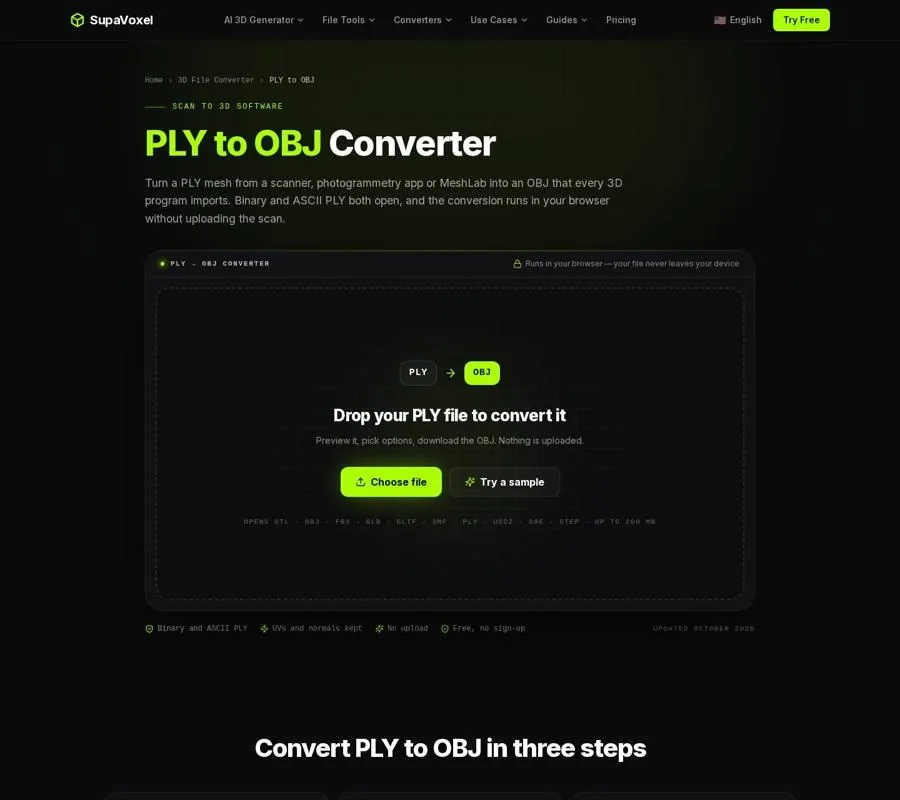
The PLY to OBJ page previews the source and reports its geometry before conversion.
This distinction also matters for Gaussian-splat PLY files. They may open as points in a PLY viewer, but their extra splat data is not a mesh surface. A mesh converter is not a substitute for a dedicated splat workflow.
If your file does report triangles and conversion is available, skip reconstruction. Your next checks are scale and how the destination application handles color.
Reconstruct a surface, then convert
Surface reconstruction is a modeling step, not a format change. It estimates a continuous skin from measured points. I would do that work where I can inspect and clean the result, rather than assuming the first generated surface is ready for sculpting or printing.
- Check the capture. Orbit around the point cloud and look for missing regions, floating background points and dense clumps. Reconstruction has to infer what happens between samples; a gap in the capture can become an unwanted surface or remain a hole.
- Build a mesh in a scan-processing application. MeshLab and CloudCompare offer Poisson reconstruction. In MeshLab, compute normals before running Screened Poisson Surface Reconstruction. Alternatively, use the meshing stage of the application that produced your scan.
- Inspect the result and export a new PLY. Check whether the reconstructed surface follows the object, whether unwanted surrounding geometry was included, and whether the new file contains faces. Then return to the converter and confirm that it reports triangles.
Do not mistake successful reconstruction for a guarantee of printability. A reconstructed mesh may still have holes or loose fragments, especially where the scan did not capture the object well. Keep the raw point cloud as an archive so you can revisit the reconstruction rather than repeatedly editing an imperfect export.
Fix the scale before downloading OBJ
A conversion can succeed geometrically and still produce an object that looks missing in your 3D application. Scale is the first thing I check when an imported scan appears tiny.
PLY has no unit field. The OBJ converter starts with File units set to millimeters and writes the OBJ in meters. That default suits many desktop and handheld scanner files. Phone, LiDAR and photogrammetry scans are often measured in meters instead. If you leave a meter-based scan set to millimeters, the resulting OBJ is 1,000 times too small.
The remedy is to identify what the source coordinates represent, set File units accordingly, and convert again. The viewer’s bounding-box readout can help flag a mismatch, but it cannot discover the intended unit from a PLY header that does not contain one. Compare the displayed extent with the real object or the scale recorded by your scanning workflow.
Avoid “fixing” this only by scaling the import until it looks plausible. Correcting the unit at conversion makes the exported file easier to pass to another application without carrying an unexplained scale adjustment.
Decide whether OBJ color will work for your destination
A mesh PLY from a color scanner often stores red, green and blue values on its vertices. The OBJ converter writes those colors after each vertex position using the common v x y z r g b extension. That preserves the data in the file, but it does not make every OBJ importer display it. An application that ignores the extra values may show a gray scan even though conversion worked.
For an OBJ workflow, test a small import in the actual destination application before processing the rest of a project. Blender’s OBJ importer, MeshLab and CloudCompare read this vertex-color extension. If your target does not, you can bake the colors to a texture in Blender and export an OBJ with its material and image.
For a web, AR or game-engine workflow that needs vertex color, the PLY to GLB converter writes it as the standard glTF COLOR_0 attribute. It still needs a mesh PLY; switching to GLB will not reconstruct a point cloud.
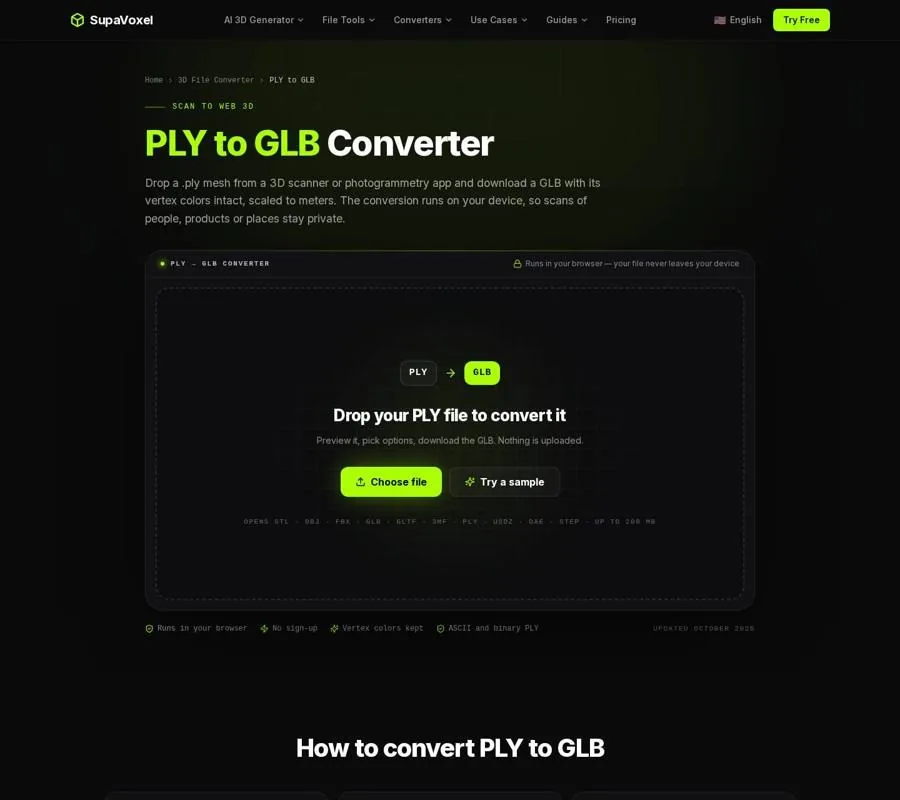
The PLY to GLB page is an alternative when the finished mesh needs vertex colors in a standard glTF attribute.
There is one more color trap: an image named in a PLY comment is not the same as per-vertex color. The OBJ converter does not load that referenced image, so you would need to apply it again in your 3D application.
Choose the output for the job
After reconstruction, choose a format for what you plan to do with the surface. OBJ is useful when you need the scan in a modeling or sculpting application, especially if normals or texture coordinates matter. GLB is a better fit when the destination expects standard glTF vertex colors.
For a one-color print, the PLY to STL converter turns a mesh PLY into an STL for a slicer and offers printing-oriented orientation controls. STL drops vertex colors and UVs because it stores triangles rather than those appearance details. It also cannot convert points without faces.
None of these output choices repairs an incomplete capture by itself. Get the surface right first; then handle scale, color and destination format as separate decisions.
FAQ
Can I rename a point-cloud PLY to OBJ?
No. Renaming changes the filename, not the geometry inside it. Reconstruct faces from the points and export a new mesh file before converting.
Why does my PLY look solid if it has no triangles?
Dense colored points can visually overlap at the preview’s scale. Check the triangle count and zoom in rather than using appearance alone to decide whether you have a surface.
Why is my converted OBJ gray?
Your importer may ignore OBJ’s vertex-color extension, or the PLY may not contain per-vertex color. Check the source colors in a PLY viewer, then test whether your destination reads colored OBJ vertices.