If you came for image to stl, this guide helps you understand a related conversion problem: which parts of a 3D asset survive when moving between file formats. It explains what GLB to FBX preserves, flattens, or removes.
Converting a GLB to FBX can give an engine or rigging tool the mesh it needs, but it does not carry over everything you see in the GLB. I use this guide to check what survives, what becomes a flat color, and what needs a different route.
The short version
- The mesh, separate parts, UV coordinates, and geometry normals carry over. Node transforms are baked into the vertex positions.
- Texture images and other material maps are not embedded. Each material gets the average color of its base-color texture instead.
- An existing skeleton and its skin weights are not written. The mesh is baked in its rest pose, and animation clips are dropped.
- Keep the GLB if you need its existing rig or motion. Use FBX for a static mesh headed to an engine or Mixamo; extract images separately if the texture matters.
Start by identifying what the GLB contains
A GLB can package geometry, materials, textures, and animation in one file. That convenience makes it easy to mistake the visible result for a single inseparable asset. Before converting, I ask a more useful question: which parts of the asset must the destination receive?
SupaVoxel’s GLB to FBX converter shows the source file’s meshes, materials, and textures when you load it, then writes a binary FBX 7.4. It accepts GLB files up to 200 MB, including Draco- and Meshopt-compressed files. Its What carries over list is worth checking against your particular model before you download the result.
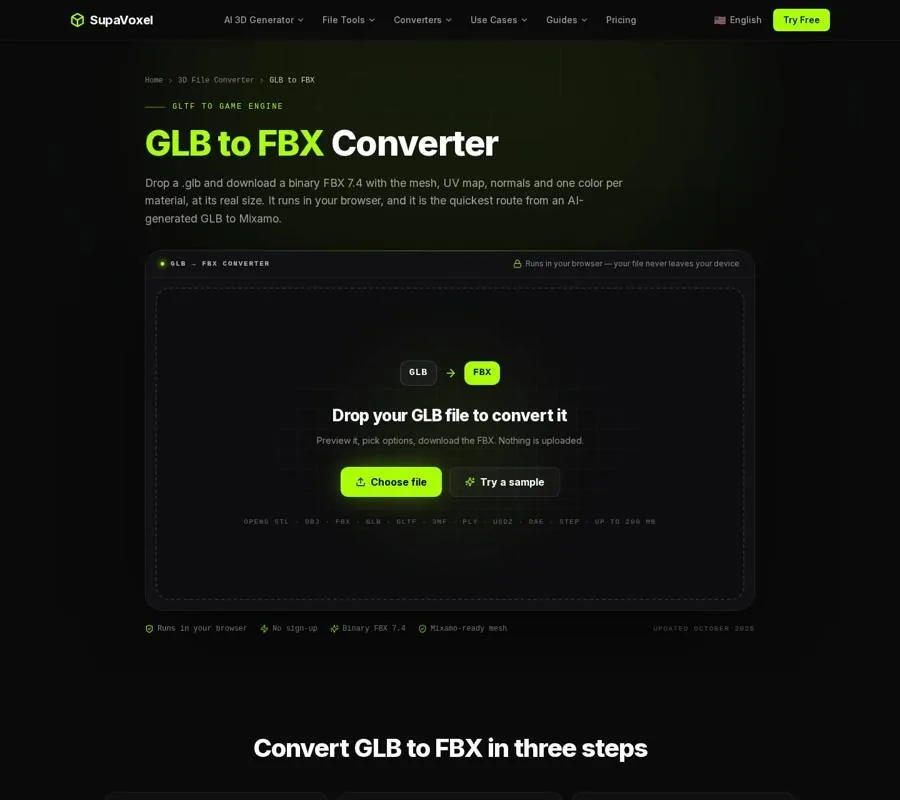
The converter shows source-file details and the output-size readout before you export.
A simple prop may need only shape and scale. A character intended for a new Mixamo rig needs a usable static mesh, not its old bones. An animated character whose existing performance must survive is a different job entirely: this conversion does not preserve that performance. Decide which case you have before treating the FBX as a replacement for the GLB.
Geometry survives, but scene transforms become geometry
Each GLB mesh becomes a separate FBX model, so a scene made of distinct parts does not collapse into a single part. The converter also writes the mesh’s UV coordinates and normals. Those are useful distinctions: UVs tell an image where to land on a surface, while geometry normals control how that surface shades. Keeping UVs does not mean keeping the image that uses them.
Node transforms are baked into vertex positions. In practical terms, the parts arrive assembled where they appeared in the GLB rather than depending on the original node transforms to put them there. That suits a static asset, but it is another reason not to treat the result as a copy of the original scene structure.
Scale deserves its own check. glTF defines its units in meters; the converter’s default interprets the GLB accordingly, rewrites the measurements in centimeters, and declares that unit in the FBX header. A character measuring 1.8 m therefore reads 180 cm in Output size. If the source was modeled at the wrong size, adjust Scale in the converter and check that readout. Rescaling later in an engine can make the visible size look right while leaving a confusing import setup behind.
The FBX is Y-up, matching the GLB. For an engine import, judge the result by its measured size and orientation as well as its silhouette.
Textures become colors, not embedded images
This is the change most likely to surprise someone looking at a shaded GLB. The FBX keeps UVs, but it does not embed the base-color texture images. Instead, a material receives the average color of its texture. A patterned jacket, for example, can retain its jacket-shaped geometry and its UV layout while appearing as a flat color.
The distinction matters for other maps too. Normal maps, roughness maps, and metallic maps are not written to this FBX. Geometry normals remain, but they cannot recreate detail that was painted into a normal map. Nor can a flat material color reproduce the surface response described by roughness or metallic maps.
If you need loose image files for reassignment, SupaVoxel’s GLB to OBJ converter can produce a ZIP containing OBJ, MTL, and PNG files with Include materials & textures on. Its OBJ route keeps base-color and normal maps, but drops metallic, roughness, occlusion, and emissive maps. That makes it useful for retrieving images and UV-mapped geometry, not for preserving every part of a GLB material.
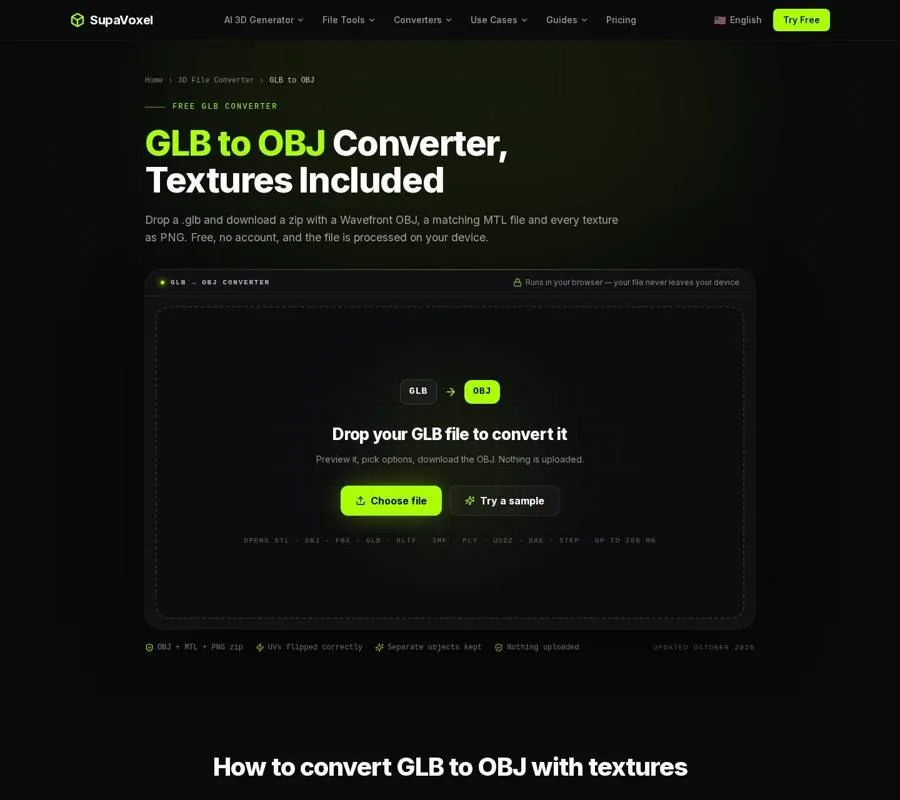
The OBJ converter offers a materials-and-textures ZIP when the images need to travel as separate files.
Keep the extracted OBJ, MTL, and PNG files together: the material file refers to the images by name. If your actual destination is FBX, use the images as assets to reassign in your 3D program or engine. If the full original appearance matters, retain the GLB as your reference rather than assuming the converted FBX contains it.
A rest-pose mesh is not an animated character
A rigged GLB can contain a skeleton, skin weights that bind vertices to bones, and animation clips that move those bones. This converter does not write the skeleton or weights. It bakes the skinned mesh in its rest pose and drops the clips.
That result is useful when you deliberately want to rig the shape again. Mixamo’s auto-rigger accepts a static FBX mesh, and material colors are enough to see the character while placing it. The absence of an old skeleton is not a conversion fault in that workflow.
It is a fault for your purpose if you need an existing walk cycle, facial movement, or other animation to remain editable. Do not send the converted FBX onward expecting those clips to appear. Keep the GLB, or import the GLB into Blender and export an FBX there when preserving its existing rig is the requirement.
Pose and shape still matter for a new rig. A standing T-pose or A-pose with arms clear of the body gives Mixamo a better starting point than a seated or crouched figure. Conversion can change the file format; it cannot turn an unsuitable pose into a suitable one.
Choose the route by what the destination needs
I make this choice from the required data, not from the filename an application happens to prefer:
- Need a static asset in an FBX-oriented workflow? Convert the GLB, then check size, part separation, and shading on import. Expect to reassign texture images if the asset needs more than flat material colors.
- Need image files or an OBJ-based editing workflow? Extract the OBJ, MTL, and PNG files instead. OBJ has no bones or keyframes, so this is a route for a static shape and its supported maps, not for preserving animation.
- Need the existing animation or complete GLB material setup? Keep the GLB. Do not make the converted FBX your only copy.
There is a separate question for print models. If the source is an STL rather than a GLB, SupaVoxel’s STL to FBX converter brings that print mesh into an FBX workflow while converting its conventional millimeter measurements to declared centimeters. An STL has no UV map or standard color data to carry over, so it cannot solve a missing-texture problem. Its triangles also retain flat normals; a faceted result may need mesh cleanup and smoothing after import.
Verify the exported FBX before handing it off
I open the downloaded file rather than relying on a successful conversion message. SupaVoxel’s FBX viewer lets you inspect the FBX’s meshes, materials, bounding-box size, and topology in a browser. Its clay mode helps separate actual shape from material appearance; wireframe makes dense or unexpected geometry easier to spot.
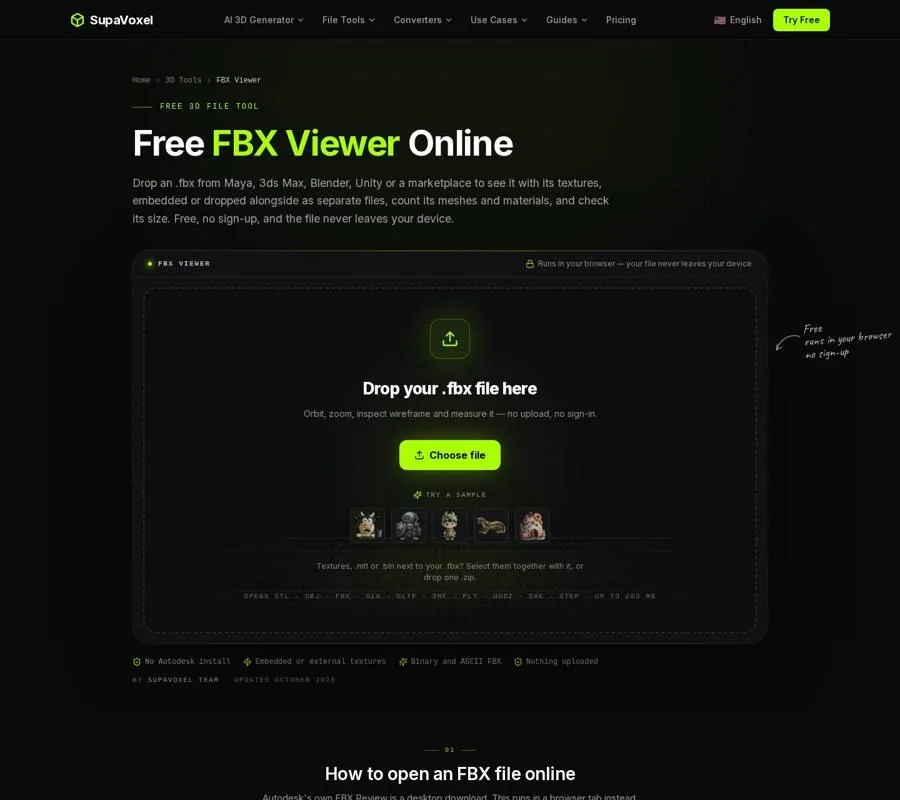
The FBX viewer provides a visual check alongside mesh, material, and size information.
For this conversion, I would confirm that all intended parts are present, the model stands upright, and the size matches the source. I would also expect flat material colors rather than embedded texture images. Those checks tell you whether the export meets its stated purpose; they do not turn omitted maps, bones, or clips back into FBX data.
FAQ
Does keeping UVs mean my textures will show up?
No. UVs are coordinates for placing images on the mesh. This FBX keeps those coordinates but not the texture images; it uses average material colors instead. Extract the images separately if you need to reassign them.
Can I convert an animated GLB and then use its animations in Mixamo?
Not through this conversion. It writes the mesh in its rest pose without the existing skeleton, weights, or clips. That static mesh can be a starting point for Mixamo auto-rigging, but the GLB’s original animations do not come along.
Should I delete the GLB once I have the FBX?
I would keep it. The GLB remains the source for its packaged textures, materials, and any existing animation, while the converted FBX serves the narrower static-mesh workflow.