If you came looking for image to stl guidance, this related workflow explains how a character mesh can move from FBX to OBJ for ZBrush, with attention to pose, scale, materials, and texture files.
An OBJ is a useful handoff when you want to sculpt a character rather than animate it. The important choices happen before conversion: settle the pose, check the scale, and decide which materials and textures need to travel with the mesh.
The short version
- Pose the character before exporting the FBX. OBJ keeps a static mesh, not the rig or animation that moves it.
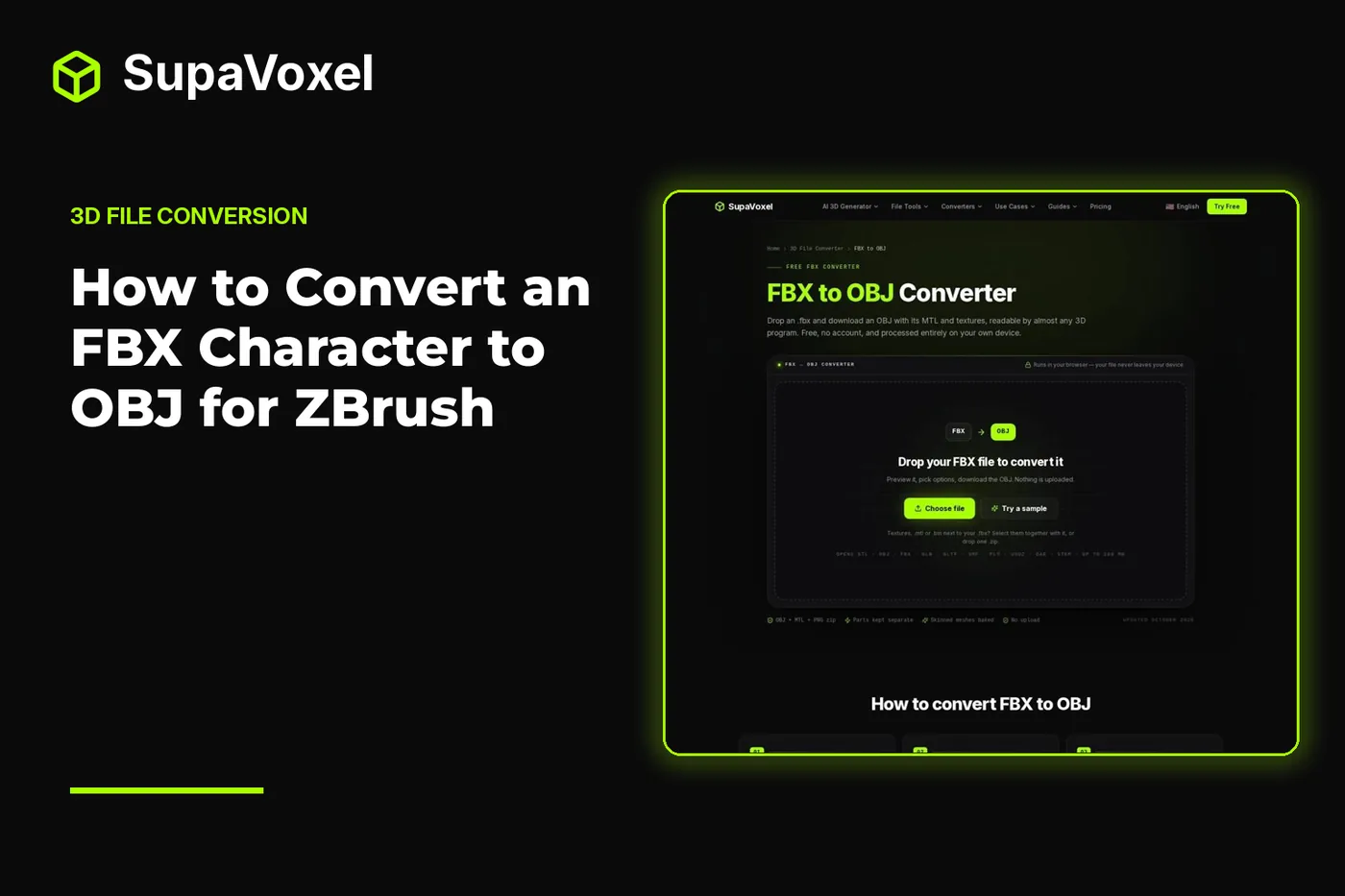
- Use SupaVoxel’s FBX to OBJ converter to retain separate mesh objects, normals, the first UV set, and available diffuse and normal textures.
- Check Output size before converting. FBX can declare units; OBJ cannot, so a scale mistake may only become obvious when you open the result.
- If you include materials and textures, keep the extracted OBJ, MTL, and PNG files together. The OBJ alone does not carry its texture images.
Decide what ZBrush needs from the character
I use OBJ for a character I intend to sculpt as a fixed shape. It gives me the polygon mesh without requiring the receiving tool to interpret an FBX scene, skeleton, or animation. Separate FBX meshes remain separate OBJ objects, with their names retained and their scene positions baked into the vertices. That matters when a character has distinct clothing, equipment, or body parts that I may want to inspect independently.
The trade-off is permanent for that export. OBJ has no place for bones, skin weights, blend shapes, or animation. A skinned mesh is written in its current loaded pose, which may be a bind pose rather than the action pose you had in mind. Converting the OBJ back to another format would not reconstruct the rig. Keep the original FBX as the master if the character still needs to move.
Materials need a similarly narrow expectation. The conversion retains diffuse color in an MTL file and writes available diffuse and normal images as PNG files. It also retains normals and the first UV set. It does not preserve every FBX material property: specular, shininess, and emissive properties are dropped. The result is a useful starting mesh for sculpting, not a promise that its appearance will match the source scene exactly. If you are deciding which file to keep for later game work as well as sculpting, SupaVoxel’s FBX vs OBJ guide lays out what each format can carry.
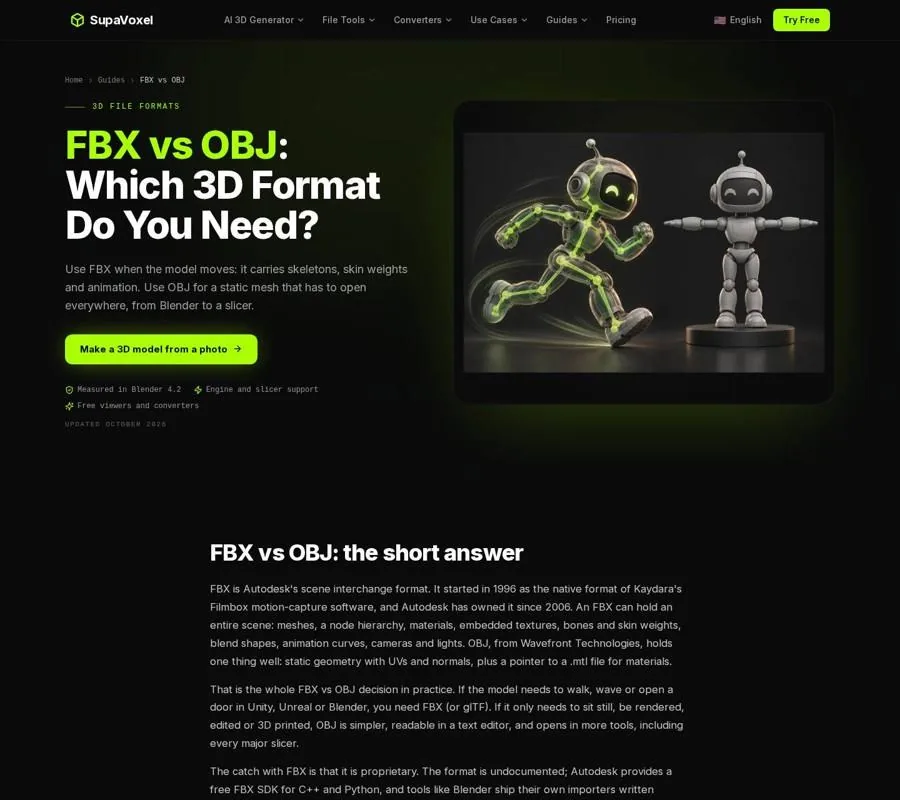
The format comparison shows why OBJ suits a static sculpting handoff but cannot replace an animated FBX.
Prepare the FBX before conversion
Start with the pose. If the character must be crouching, reaching, or holding an object in the sculpt, arrange that pose in the source application and export the FBX from there. Do not count on an animation take following the mesh into ZBrush. The converter writes the pose in which it loads the character; it cannot put an OBJ into a different animation pose afterward.
Next, look at the character as a collection of meshes rather than a single silhouette. An OBJ can preserve the separate objects, but it cannot preserve the FBX node transforms as editable scene controls. Those transforms become vertex positions. Check that accessories and clothing sit where you want them before export, and retain the FBX if you may need to revise their placement using the original scene.
Have any texture images you want to carry available when you convert. Some FBX files contain their images; others refer to files outside the FBX. This is not a reason to delay a geometry-only sculpt: normals, UVs, and faces can still be exported without the images. It does mean you should decide whether you want a textured reference alongside the OBJ or just a bare mesh. The MTL and PNG files are useful for the former; they do not change the shape you will sculpt.
Finally, know roughly how large the character should be. Many FBX files from Maya, Unity, and Mixamo use centimeters. The converter defaults to centimeters for File units and writes the OBJ in meters, so a character measuring 180 cm arrives 1.8 m tall in an application reading OBJ values as meters. If the displayed size is clearly wrong, fix the unit choice before downloading rather than scaling by eye later.
Convert the character to OBJ
- Drop in the FBX. The converter accepts binary or ASCII FBX from version 7.0 onward, up to 200 MB. Its panel lists the meshes, materials, and textures embedded in the file. Use that inventory to check that the character parts you expect are present.
- Choose the material output. Leave Include materials & textures on if you want a zip containing the OBJ, MTL, and PNG textures. Switch it off if you need only a bare OBJ with geometry, normals, and UVs. For a ZBrush sculpt, I would keep the material package when the images provide useful reference, even if the sculpt itself begins with the shape.
- Read the output size. Compare it with the character’s intended height. If it appears 100 times too large or small, change File units rather than using Scale to compensate for a unit mismatch. Leave Scale at 1 when the unit selection is correct.
- Convert and unpack the result. Put the OBJ, MTL, and PNG files in the same folder. The MTL refers to images by file name; renaming or separating them breaks that relationship. Keep the original FBX elsewhere as the editable rigged source.
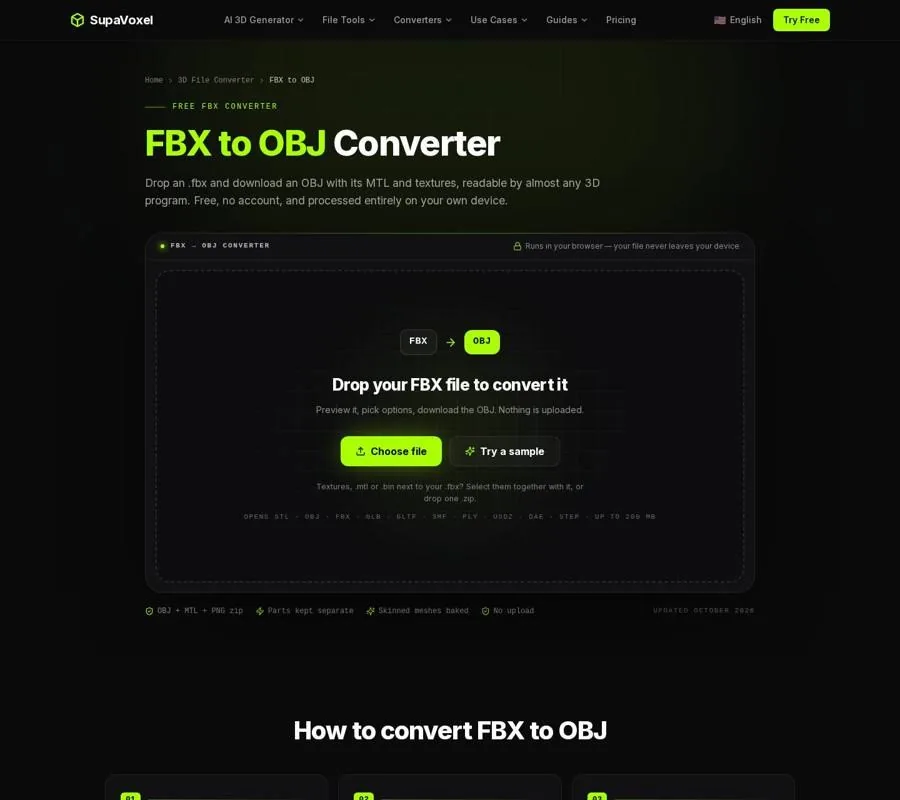
The converter panel lets you inspect the FBX contents and check output size before writing the static OBJ.
Check the OBJ before you start sculpting
Open the converted OBJ and check the silhouette first. Is the character in the pose you intended, or did the FBX load in its bind pose? Look at the hands, feet, face, and any area where clothing meets the body. A pose error is best corrected in the source FBX, not worked around after substantial sculpting.
Then check the parts. Separate OBJ objects should still occupy their original positions, even though the FBX transforms have been baked into the geometry. This is valuable for a character assembled from several meshes, but it is not the same as retaining an editable FBX hierarchy. If you expected a movable accessory, return to the source scene for that adjustment.
Check size as well as appearance. OBJ does not declare units, so the numbers depend on what the importing application assumes. A mesh can look right in a viewport and still be the wrong size for a later print or handoff. Compare the imported dimensions with the output size you approved during conversion.
Last, distinguish missing texture files from missing geometry. An OBJ with no visible color can still be a complete sculpting mesh. UVs describe where an image would map; they are not the image itself. If you chose the packaged output, keep its MTL and PNG files beside the OBJ while you inspect it. Treat any unfamiliar material appearance as a separate issue from whether the mesh and pose survived.
If the sculpt is headed for a printer
OBJ is a sensible working format, but a print handoff may call for STL. SupaVoxel’s OBJ to STL converter lets you choose the OBJ’s units, see the resulting size in millimeters, and export a binary STL. It triangulates faces and merges OBJ groups into a single solid. STL drops UVs, materials, and textures, so keep the OBJ as your sculpting master.
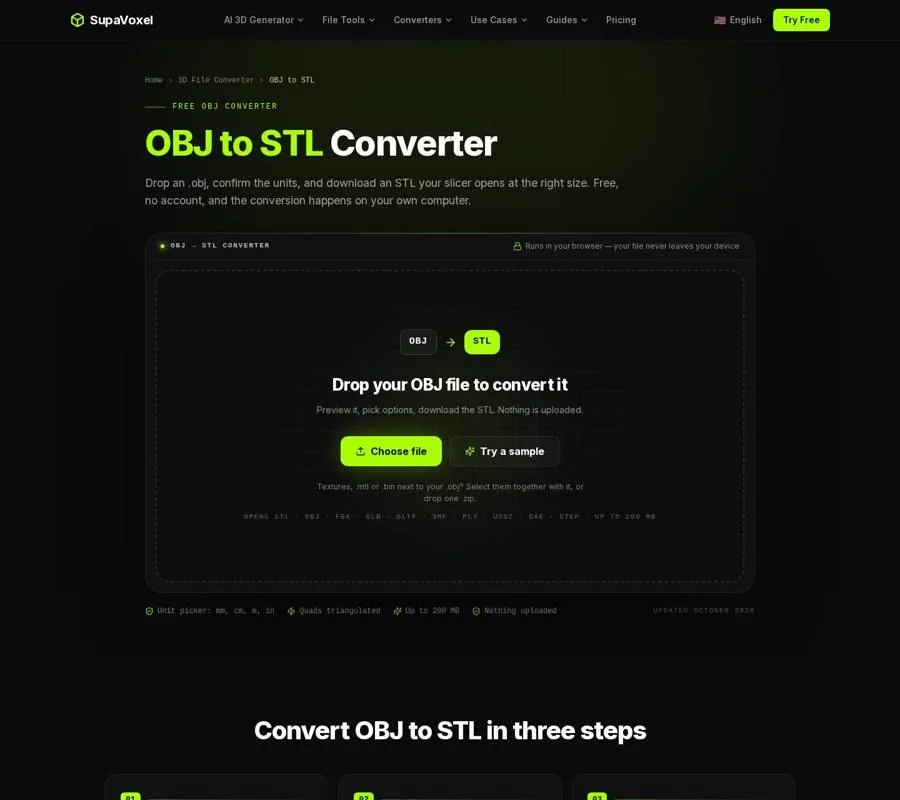
The print-size display helps catch an OBJ unit mistake before it becomes an STL.
Do not mistake format conversion for print repair. A character made for a game may contain surfaces with no thickness, gaps, or intersecting parts. STL can represent the same problematic shape without making it printable. Inspect the mesh as a solid before slicing it.
The reverse trip serves a different purpose. If a character survives only as a print STL and you want it back in a modeling or texturing workflow, SupaVoxel’s STL to OBJ converter converts the print-file scale to meters and turns the Z-up model for an OBJ workflow. It cannot restore a lost rig, UV map, or texture: STL never held those. That is why I keep the FBX, the sculpting OBJ, and any print STL as distinct stages rather than treating them as interchangeable masters.
FAQ
Will my character’s animation play in ZBrush after conversion?
No. OBJ holds a static mesh, so the skeleton, skin weights, blend shapes, and animation are dropped. Pose the character before exporting the FBX, and keep that FBX if you need the motion later.
Will the character’s parts be merged?
Not by the FBX to OBJ conversion. FBX meshes and their names become separate OBJ objects, while their positions are baked into the vertices. Check the imported parts before sculpting, especially if you expected to rearrange them.
Do I need the MTL and PNG files to sculpt the mesh?
No. A bare OBJ retains the geometry, normals, and first UV set. Keep the MTL and PNG files with it when you want the available diffuse color and texture images as a visual reference.